

#deepdive
The world's most widely used content management system. With the help of numerous plugins and extensions, even complex applications can be implemented without coding knowledge. Insights into my work with WordPress as a CMS.
With a market share of over 60%, WordPress is by far the most widely used CMS worldwide. Numerous extensions turn the original blogging tool into a powerful instrument for creating complex website projects. As the term CMS or "Content Management System" already reveals, WordPress is a tool for creating and managing digital content on a website. In the following article, I'll give you insights into my work with WordPress. I deliberately won't cover digital content creation here; for that, I use WordPress Elementor Pro. The focus of this article is the ecosystem around WordPress and managing content within the WordPress backend.
The WordPress backend has remained unchanged for many years. Manage media, view posts and pages, moderate comments, and manage permissions. The basic features in WordPress hardly differ from other CMS platforms.
Various permissions can be assigned within the CMS. These essentially follow the blog structure and are divided into read permissions, write permissions, and administrator rights. Only the latter are allowed to make changes to the system. Finer distinctions can be achieved with the help of a plugin.
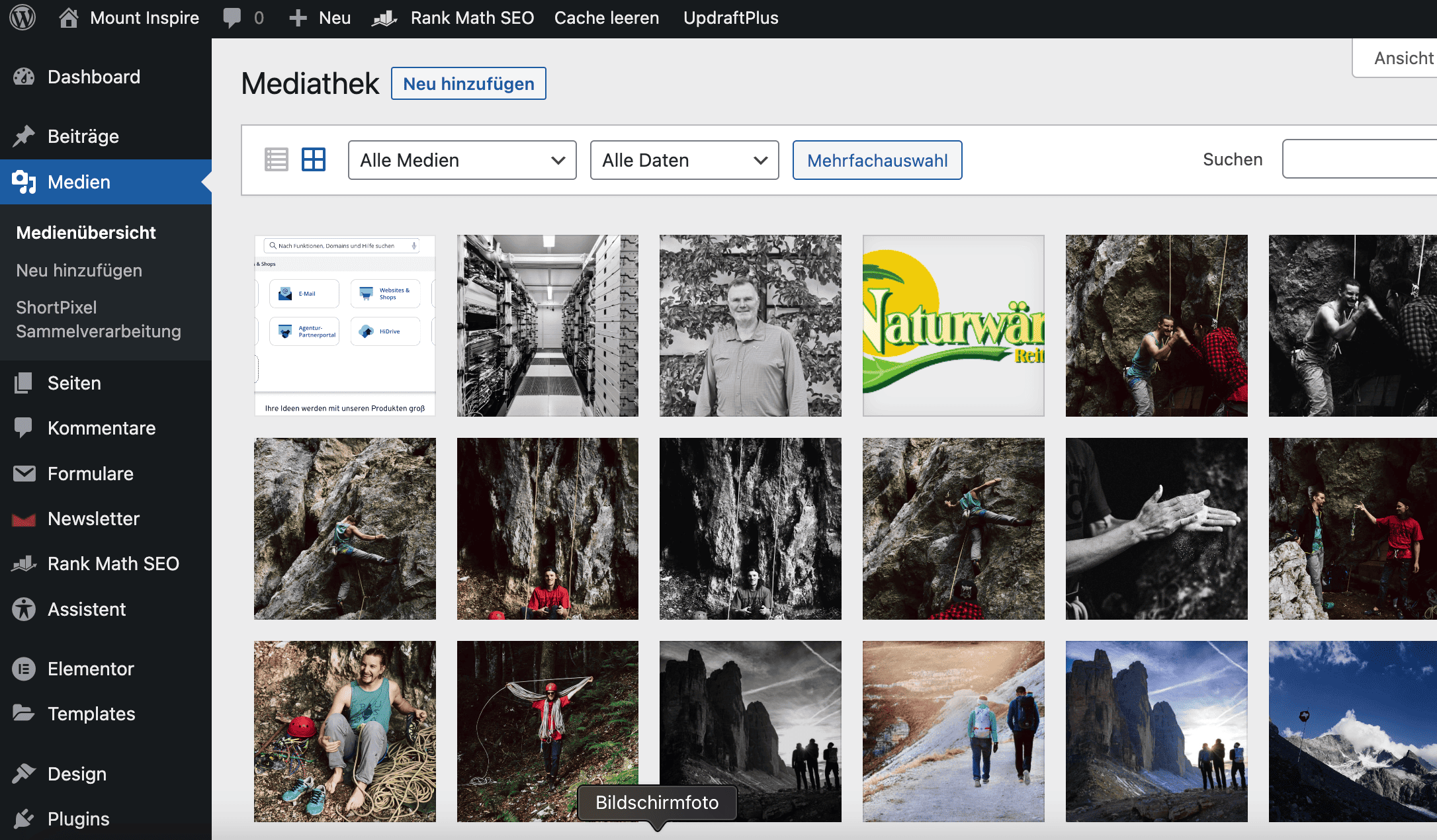
Add, label, and edit media. Multiple media items can only be handled at once when uploading and deleting. Image labeling is always done individually, which can become quite tedious with a large number of images. Therefore, always label images properly before uploading; this saves time in post-processing. Using the Short Pixel plugin, I reduce image size to a minimum, ensuring fast loading times. The plugin also allows even smaller image formats to be retrieved for teasers and thumbnails.
Posts are the classic blog entries that WordPress was originally designed for. Posts can be assigned to different categories and further refined using tags. With the help of categories, hierarchies can also be mapped within blog posts.
Pages have now become significantly more important than posts when it comes to search engine optimization. They outline services, prices, contact options, and a wealth of other information on a website. Pages can be arranged hierarchically relative to one another. This hierarchy can be made visible in the navigation menu or, for instance, within the URL structure.
The website design is created using so-called "Themes". There are quite a few free themes available for visualization. The problem with these free versions: the website looks like a cookie-cutter template, and customization options are very limited. That's why I use WordPress Elementor Pro to bring content to life visually. Menus are also built within the design area; typically, there is a header menu and a footer menu. Pages are added to the individual menus using drag & drop.
Thanks to the widespread adoption of WordPress as an open-source CMS, there is a vibrant community of active developers who add new features via plugins. These plugins are small or large extensions to the existing CMS. Attention: Before installing a plugin, always ensure its compatibility with the current WordPress version. Furthermore, not every plugin complies with current data privacy laws. As a rule of thumb: fewer plugins = better!
Many of these and other plugins offer basic and premium versions. Depending on the level of customization needed, the premium version is often not required. Unfortunately, it can be observed that many great free plugins see their feature set reduced over time. The upside: in these cases, other developers quickly emerge to craft fresh new plugins.
Naturally, the popularity of WordPress doesn't just bring benefits. The system is more frequently targeted by hackers. That's why it is essential to change all passwords at regular intervals and keep the website continuously updated. It can also happen time and again that updates cause compatibility issues between plugins and the CMS. For all these scenarios, website backups are invaluable for preventing data loss. In my experience, connecting external data sources is very unreliable and prone to errors. If data from third-party systems needs to be integrated, I generally advise against WordPress. Unless, of course, the data is to be embedded via an iframe—though the use of iframes should also be critically evaluated.
For me, WordPress remains a very intuitive tool for creating diverse websites. Cost-effective, continuously updated, and backed by an active community, the platform has evolved steadily over many years.
#mountinspirepeople